A laptop is the one device in the house that is allowed to switch its own Wi-Fi radio off to save power. That single feature explains most laptop-only disconnects.
How this page is funded: some links here are affiliate links, and Mesh & Signal earns a commission if you buy through them. It costs you nothing extra, it never changes which product we rank first, and we do not publish a price we have not verified. Full disclosure.
If your laptop drops Wi-Fi while a phone sitting next to it stays connected, the cause is on the laptop — and in most cases it is the operating system switching the Wi-Fi adapter off to save power. That setting is on by default on Windows laptops and it is the first thing to change.
Windows: turn off adapter power management
Open Device Manager, expand Network adapters, right-click your Wi-Fi adapter and choose Properties.
On the Power Management tab, clear Allow the computer to turn off this device to save power.
Then open Settings → System → Power & battery → Power mode and set it to Balanced or Best performance while plugged in. Windows' power plans have their own separate wireless adapter setting that can idle the radio independently.
This single change fixes a large share of “drops when I leave it for a few minutes” and “drops when the lid has been closed” cases on both Windows 10 and Windows 11.
Then the driver
Wi-Fi adapter drivers are a genuine source of instability, and the one Windows Update installs is frequently older than the one the chipset vendor ships. Get the driver from the laptop manufacturer's support page for your exact model, or from Intel, Realtek, MediaTek or Qualcomm directly if you know the chipset. Install it, reboot, and give it a day before concluding anything.
If a recent driver update started the problem, roll back to the previous version from the same Device Manager properties window. Both directions are common.
macOS: a shorter list
Remove and re-add the network in System Settings → Wi-Fi → Advanced, then rejoin it.
Check Location Services is enabled for system Wi-Fi networking — macOS uses it for regulatory channel selection, and disabling it can cause odd behavior on 5 GHz.
Delete the Wi-Fi preference files only as a last resort, and only with a backup.
Check for a Bluetooth conflict. Many laptops share one chip and one antenna path between Bluetooth and 2.4 GHz Wi-Fi. Disconnecting a busy Bluetooth device such as a headset and watching whether the drops stop is a fast test.
A laptop that lives on the same desk every day does not need Wi-Fi for that desk. A USB-C dock with Ethernet, or a cheap adapter and a powerline or MoCA link, removes the entire class of problem on this page — and you keep Wi-Fi for when you pick the machine up.
One more laptop-specific cause
Some laptops have a weak 5 GHz antenna, especially thin models with the antenna routed through a metal lid hinge. If the laptop reconnects immediately on 2.4 GHz and struggles on 5 GHz in the same spot where a phone is fine, that is the hardware, and the practical fix is either a USB Wi-Fi adapter or a radio closer to the desk.
How we picked
We do not run a test lab. Rankings here are built from the manufacturers' published specifications, measurements taken by independent outlets that do have labs, and the structural reasoning on this site about what a given house or job actually needs. Every product was checked as currently sold before it was included. Where a figure appears it is attributed and linked in Sources; where we have no basis for a claim, it is left out. Our methodology sets out exactly what we will and will not assert.
Quick picks
Ranked by our published scoring rubric (fixes weak signal, fixes roaming, install effort, value). Tap any row to jump to the full write-up, or go straight to the retailer from the right-hand column. How we score.
#
Product
Best for
Score
Price
1
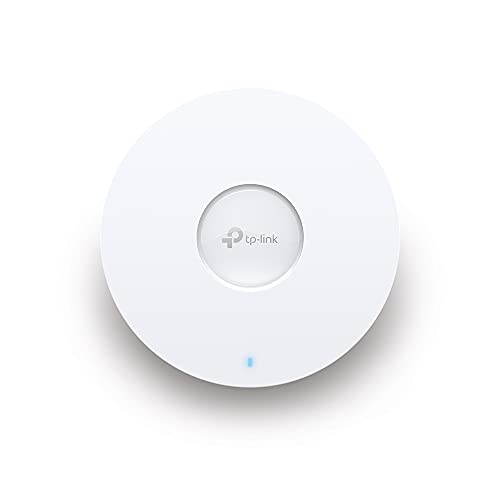
TP-Link Omada EAP610A Wi-Fi 6 access point on a PoE cable, mounted near the desk. If the laptop drops because the signal at that one spot is marginal, this removes the marginal signal rather than managing it.
TP-Link TL-PA7017P KITAn AV1000 powerline kit at roughly 80% of the AV2000 kit's speed, with a passthrough socket. A laptop at a fixed desk is a good candidate for a cable, and this is the cable you do not have to install.
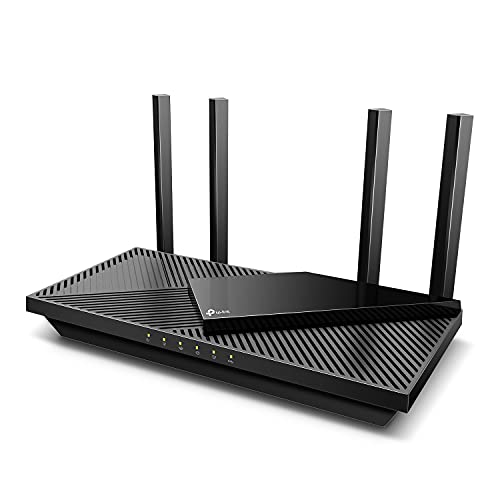
TP-Link Archer AX55AX3000 that measured 823.7 Mbps at 15 ft and stayed usable at 70 ft in TechGearLab testing, with WPA3 and OFDMA. Worth it when the drops affect every device and the router is several years old — not when only the laptop is affected.
Prices as of October 17, 2026, read from each product's own Amazon listing; Amazon prices change often. Scroll the table sideways on a narrow screen. Scores are our editorial assessment from published specifications and independent testing by named outlets — not our own lab results. What we do and do not test.
The picks in full
#1 · A desk that needs a reliable signal, permanently
TP-Link Omada EAP610
TP-Link · Budget tier
A rock-solid Wi-Fi 6 access point with no ongoing fees — the cheapest way to do coverage properly rather than cheaply.
Key specifications
Standard
Wi-Fi 6
Software fees
None
Requires
PoE and a cable run
Score 8.6/10
Fixes weak signal10.0
Fixes roaming8.5
Install effort5.5
Value8.5
What it gets right
+Costs about the same as a good extender and performs like something in a different category
+Wi-Fi 6 is plenty for a house full of phones, laptops and cameras
#ad Price as of October 17, 2026; Amazon prices change often. How we are funded.
Common questions
Why does my laptop keep losing Wi-Fi but my phone does not?+−
Because laptops power down their Wi-Fi adapter to save battery and phones do not. On Windows, clearing “Allow the computer to turn off this device to save power” in the adapter's Device Manager properties fixes a large share of these cases.
Can a Wi-Fi driver cause disconnects?+−
Yes, and it is one of the most common causes on Windows. The driver Windows Update supplies is often older than the chipset vendor's. Install the current driver from your laptop manufacturer or the chipset vendor; if the problem started with an update, roll back instead.
Does Bluetooth interfere with laptop Wi-Fi?+−
It can. Many laptops share one chip and one antenna path between Bluetooth and 2.4 GHz Wi-Fi, so a busy Bluetooth headset or mouse can degrade a 2.4 GHz connection. Disconnecting the Bluetooth device and watching whether the drops stop is a quick test.
Should I buy a new router if my laptop keeps dropping?+−
Not until you have confirmed other devices drop too. If only the laptop is affected, a new router changes nothing — the adapter settings and the driver are where the problem is. If everything drops, then the router becomes a reasonable suspect.